In order to cope with the characteristics of rhythm games, such as "high speed, short keystroke, and quick rebound", I bought the Razer Huntsman Elite keyboard. In addition to meeting the needs of rhythm games, it can also achieve personalized lighting effects through Razer Synapse 3, such as using the Chroma Visualizer software to make the keyboard lights change with the rhythm of the music.
Chroma Visualizer on Windows
This is the official demo video:
You can see that the keyboard has two lighting effects, one is that the key area is treated as a screen, showing the spectrum of the music, and the other is the border lighting effect of the keyboard, the glowing area changes with the volume of the music.
Configure Chroma Visualizer Alternatives on Mac
Razer Synapse 3 is a software exclusive to the Windows platform. Although its previous version Razer Synapse 2 supports Mac, it does not have the Chroma Visualizer function, you can only set fixed lighting effects. There are also posts on the Razer insider forum that have been hanging for several years (Synapse 3.0 for Mac?, Synapse 3 Mac OS X Support), asking when the Mac version of the Chroma Visualizer will be released, but Razer has not given a clear answer.
In the post, netizens have pointed out that the only project that can run on Mac and is compatible with the latest devices is 1kc/razer-macos. It supports the spectrum function to a certain extent, but actually it sends commands to the hardware and uses the hardware's built-in functions, rather than implementing the Chroma Visualizer by listening to the system audio through software.
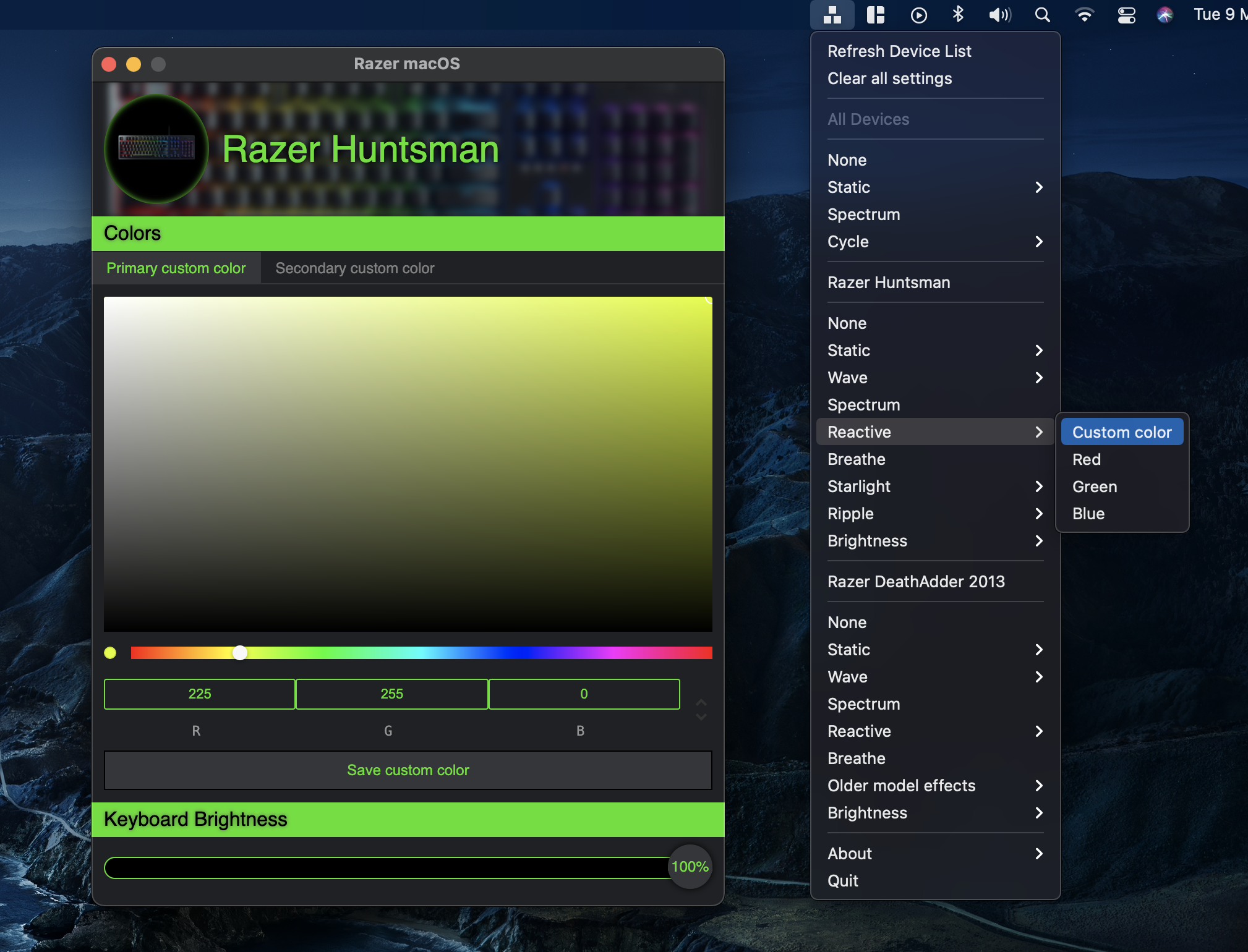
The Difficulty of Listening to System Audio on Mac
To listen to system audio on Windows, you can use WASAPI under Core Audio APIs, Linux also has similar ALSA and PulseAudio. Both systems allow softwares to directly access system audio without affecting normal playback.
Mac does not provide a good API for directly listening to system audio. To get audio on Mac, you first need to specify an input device, but Mac does not provide a built-in virtual device... so we have to add a virtual device through third-party software first. Currently, the one I personally recommend is ExistentialAudio/BlackHole, for the following reasons:
- It is a modern software (in contrast, another software Soundflower has been discontinued and does not support new systems and Apple Silicon chips)
- Completely free, you can choose to sponsor it on the download page (in contrast, another software Loopback is a paid software)
- It has very high freedom (supports 2 channels to 16 channels, can customize delay, bit rate, etc.), no need to modify the kernel or security policy
You can download and install it on the official download page, or install it via Homebrew (2ch means 2 channels, which is enough for us):
brew install blackhole-2chAt this point, our system will have an input device and an output device, both named BlackHole 2ch. When we set BlackHole 2ch as the system's "output" device, all audio will be transmitted to the "input" device of BlackHole 2ch, instead of being output to the speakers. Although not perfect, we already have a device that can listen to system audio.
No Impact on Playback: Multi-Output Device
With the above method, we can listen to system audio, but this will cause us to not hear any sound, because the speakers are ignored. Fortunately, Mac provides a feature called "Multi-Output Device", which allows us to output to multiple devices at the same time. Open the search box, type "Audio MIDI Setup", then click the "+" sign in the lower left corner of the pop-up window, select "Create Multi-Output Device", and finally check both your speakers and BlackHole 2ch in the list on the right.

Now, we can select "Multi-Output Device" as the system's "output" device in the system settings, so we can hear sound at the same time.
Install OpenRGB Driver
On Mac, we need a driver to control the keyboard lights. I chose CalcProgrammer1/OpenRGB, which is an open-source RGB control software that supports a variety of RGB devices, including Razer keyboards. Its latest version is 0.9, which can be downloaded from here.
In addition to configuring the lights of each key through the GUI, OpenRGB can also start a server, allowing third-party programs to control the lights through this server. The following image shows the SDK Server tab of OpenRGB, where you can directly click the Start Server button to start the server. If you can't click it, it's likely that the port is already used, try changing 6742 to another similar number in the settings on the left and try again. (Note: Do not change it to a port that is already occupied; also try not to change it to a number below 1024, as you may need higher permissions to listen on these ports.)

Install KeyboardVisualizer
CalcProgrammer1/KeyboardVisualizer is a cross-platform software that can capture specific system audio input and convert it into keyboard lighting effects. Its lighting effects are highly customizable, and it supports the OpenRGB protocol, allowing us to control the keyboard lights through OpenRGB.
The only downside is that although it is a cross-platform software, it currently only provides pre-built files for the Windows version. But it's okay, as someone who loves to tinker, we can make it run on Mac! But before that, please install Git and qmake.
brew install git
brew install qt
Then, we can clone the repository via Git:
# Clone the repository
git clone https://gitlab.com/CalcProgrammer1/KeyboardVisualizer.git

# Enter the repository directory
cd KeyboardVisualizer

# Clone the submodules in the repository
git submodule update --init --recursive
Then, we can generate the Makefile via qmake, and call the make command to compile it:
qmake KeyboardVisualizer.pro
make -j8
At this point, you will find a KeyboardVisualizer.app file in the directory, which is the software we compiled. However, this software has a problem: it does not request microphone permission when you run it by clicking directly, so you need to run it through the terminal and give the terminal microphone permission:
./KeyboardVisualizer.app/Contents/MacOS/KeyboardVisualizerThen... you will find that the audio output quality suddenly becomes very low. This is because KeyboardVisualizer forcibly modifies and locks the sampling rate of the input device. For a keyboard lighting effect, indeed, there is no need for particularly high audio quality, this will only increase the computational load.
Let Aggregate Device Save the Day
We can solve this problem by using an aggregate device. Open the search box, type "Audio MIDI Setup", then click the "+" sign in the lower left corner of the pop-up window, select "Create Aggregate Device", and finally check both your speakers and BlackHole 2ch in the list on the right.

Set it as the system's "input" device, then start KeyboardVisualizer, you will find that the sound quality is back to normal, and KeyboardVisualizer works fine.

If you can see the waveform like me, you are not far from success! Finally, click the Connect button in the lower right corner to connect to the OpenRGB server that was just started, and then you can see the keyboard lighting effects change with the rhythm of the music.
What Have We Done So Far
- Installed the BlackHole 2ch driver
- Output to both speakers and BlackHole 2ch through Multi-Output Device
- Controlled the keyboard lights through OpenRGB
- Listened to system audio and converted it into keyboard lighting effects through KeyboardVisualizer
- Solved the problem of KeyboardVisualizer modifying the sampling rate through Aggregate Device
- Connected KeyboardVisualizer with OpenRGB SDK Server
We can use a simple architecture diagram to represent this process:
It is worth noting that since two softwares are running and recording permission is enabled, three icons will be added to the top status bar, which are OpenRGB, KeyboardVisualizer, and system recording.
